
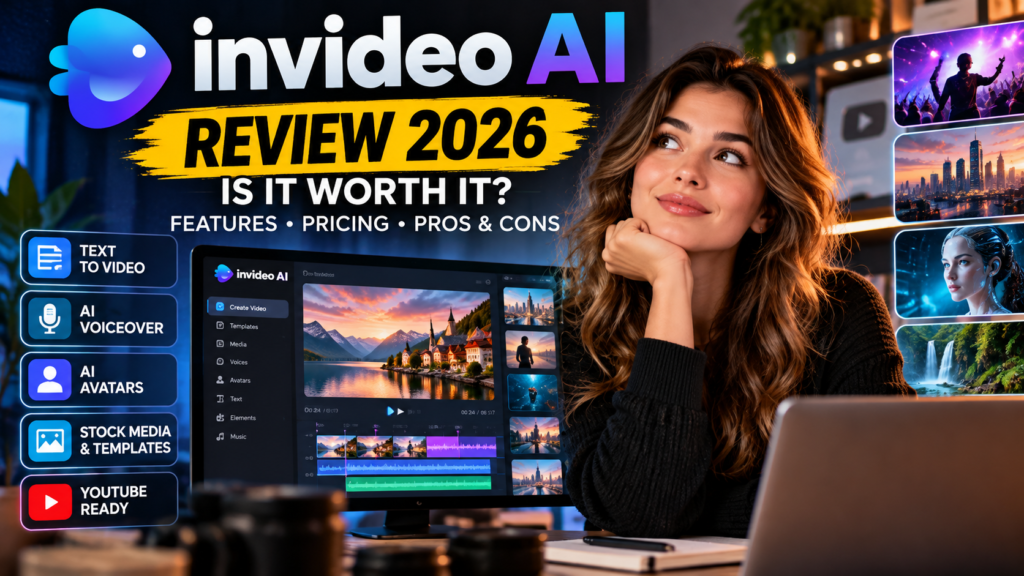
Updated October 2026 · Vervecta editorial guide
Is InVideo AI worth paying for in 2026? For creators who need a mix of AI-generated footage, prompt-driven assistance, voice and audio tools, and conventional video editing, it can be a useful all-in-one workspace. But the real value depends on what you create, how often you generate fresh clips, and how quickly AI credits are consumed.
InVideo is no longer simply a tool that assembles stock clips behind a script. Its current product includes access to multiple generative models, AI agents, and a browser-based timeline editor. These capabilities appeal to YouTube creators, marketers and small teams, but they also make the pricing model worth understanding before subscribing.
This review explains what InVideo does, how to approach its pricing, where it performs well on paper, the limitations to watch for, and which alternatives deserve consideration. It is an independent feature-and-policy analysis based on official product documentation, not a claim that every model or paid tier has been personally tested in identical conditions.
Editorial disclosure: The links in this article currently point to official product or help pages. No approved affiliate tracking link has been inserted into this review. If affiliate links are added later, they will be disclosed.
Quick verdict: InVideo is most attractive to creators who want to experiment with AI video generation and then retain editing control. It is less attractive when a fixed monthly budget must guarantee a predictable quantity of long, premium-quality generated footage.
Explore InVideo on the official website · Check current pricing and credits
InVideo AI review: at a glance
| Category | Our assessment |
|---|---|
| Best for | YouTube videos, social clips, promotional content, and AI-assisted editing |
| Core workflow | Prompts, generative models, AI assistance, and manual timeline editing |
| Starting cost | Limited free access; paid tiers and credits vary |
| Main advantage | Creation and editing options in a single workspace |
| Main drawback | Credit usage can be difficult to predict across models and revisions |
| Best advice | Test a short project and review model costs before upgrading |
If you are comparing multiple products, also read our 10 Best AI Video Tools in 2026 roundup, which places InVideo alongside Pictory, Synthesia, VEED, Filmora and other alternatives.
What is InVideo AI?
InVideo AI is a video creation platform that combines automated generation with more traditional editing controls. Depending on the workflow and plan, users can prompt an AI agent, generate assets with supported image or video models, work with audio, and refine their project in an editor.
It is important to distinguish three related jobs. Video generation creates new footage from text or image prompts. Video assembly structures clips, captions, voices and music into a coherent production. Video editing lets you adjust the result after it is assembled. InVideo offers workflows that touch more than one of these jobs.
That breadth can be convenient. Instead of exporting a clip from one tool and rebuilding the entire project in another, a creator may be able to handle more of the process in the same workspace. However, a platform that does many things is not automatically the most economical option for each individual task.
How does InVideo AI work?
A typical project begins with a goal: a video idea, an existing script, a reference image or footage to edit. You then choose the creation route that matches the job, review the planned AI work and refine the output.
Step 1: InVideo AI review checklist — define your video audience and format
State who will watch the video and where it will appear. A vertical, fast-paced YouTube Short needs very different pacing and framing from a landscape tutorial. Giving a precise subject, duration target, tone, aspect ratio and call to action makes the first draft easier to assess.
Step 2: Choose stock-driven or generated visuals
Stock-driven content uses existing licensed footage and other assets. Generative content asks AI models to create new media. Stock footage can be more dependable for common topics; generative clips offer greater creative freedom but can require more credits and revisions.
Step 3: Review the credit cost
InVideo’s official documentation says credit consumption depends on the model, mode, duration, resolution and other generation settings. Agent workflows can also consume credits for processing and media creation. Before starting a costly job, inspect the estimated usage or request approval before the AI generates assets.
Step 4: Edit the result
Once a draft exists, review every scene. Check whether the visuals accurately match the script, whether the voice mispronounces names, whether captions are readable on mobile, and whether transitions support the story rather than distracting from it.
Step 5: Export and verify
Export rules and watermark conditions depend on your current plan. Watch the finished video on a phone, confirm its aspect ratio and resolution, and verify that the music and visuals are licensed for your intended publication.
Key features worth knowing in 2026
1. Prompt-based video creation
InVideo supports creation workflows guided by written instructions. A detailed prompt can describe a concept, target duration, audience, mood, visuals and speaking style. This is useful for quickly developing an outline or first draft, especially when starting from a blank page.
Its limitation is the same as with other AI content systems: a confident-looking result may contain wrong facts, awkward imagery or irrelevant footage. Human review remains essential.
2. Access to multiple generative models
InVideo’s official model documentation describes a workspace that brings together numerous video, image and audio models. The right model depends on whether you need speed, motion quality, specific styling or audio features. Model availability and pricing can change independently of your subscription.
For example, cinematic footage may require a more expensive model than a simple illustrative cutaway. A creator should compare cost per usable scene, not simply count the number of models listed on a sales page.
3. AI agents for creation and changes
AI agent workflows can respond to instructions and perform work across media generation and editing. Official guidance describes different quality modes, including options optimized for faster drafts and more expensive final output.
For cost control, use draft-quality generations when experimenting. Move to a premium model only after the scene’s structure, wording and visual direction are settled.
4. Browser-based timeline editing
InVideo also provides a more conventional editor, with a multitrack timeline and controls for clips, audio and visual adjustments. The official help center explains that manual editing on this timeline does not use AI-generation credits, while actions involving AI models or agents may.
This distinction can save money. If you only need to shorten a shot, change pacing or rearrange existing clips, manual adjustments may be preferable to regenerating everything.
5. Audio, narration and other AI tools
Supported workflows also include audio-related tools. Narration quality depends on the selected service, model and voice options. Always check pacing, pronunciation, tone and any required permission before using cloned or synthetic voices.
6. Stock media and promotional workflows
InVideo’s plans can include licensed stock sources and advertising-oriented features. Stock footage is helpful for business explainers, product concepts and everyday scenes. Some premium stock media may have separate allowances, so check restrictions instead of assuming every stock asset is unlimited.
7. Aspect ratios for social platforms
A project intended for short-form feeds should use vertical framing and readable captions, while an educational YouTube video usually needs a landscape composition. The format is a creative decision, not just an export setting: key subjects, text and transitions need to fit the frame.
InVideo AI pricing in 2026: what do plans actually include?
Pricing is the area where readers should be most careful. InVideo has updated its credit system and subscription lineup over time, and pricing may vary with plan selection, billing cycle, seats, promotions and model access. For accuracy, we do not treat an old promotional price as a guaranteed current checkout price. Check the live official pricing page before buying.
| Plan type | What to evaluate | Best fit |
|---|---|---|
| Free access | Small AI allowance, generation options and any watermark or export restrictions | Trying the interface and testing a short concept |
| Entry paid tier | Monthly credits, supported models, output restrictions and seat minimums | Occasional videos and light experimentation |
| Creator or mid-tier plan | Credit volume, model access and extra assets | Creators publishing regularly |
| High-volume or team plans | Credits per seat, collaboration, storage and additional usage costs | Production teams and frequent campaigns |
Do not confuse an advertised “per seat per month” price with the amount due at checkout. Some promotions require annual billing or a minimum number of seats. Review the checkout total, taxes, renewal rate and refund policy before payment.
What exactly uses credits?
According to InVideo’s help center, credits can pay for work done by AI agents and for generating media such as images, videos, audio or music. Different models consume different amounts. For video models, duration, resolution and audio settings can affect the charge.
Manual adjustments in the timeline editor are treated differently from model-driven generation. The platform also provides ways to inspect generation costs and project usage. Credits included in some subscription arrangements reset rather than rolling over, so it is important to check your specific current terms.
Why can a cheap subscription become expensive?
Consider a hypothetical workflow. A creator needs eight finished cinematic shots but generates three versions of each before finding a usable result. That is twenty-four generations for eight final clips, even before voice, music or other model-based work. A higher quality model, longer duration or higher resolution can raise the credit cost further.
That is why an effective budget starts with the number of usable finished shots you need, multiplied by your expected revision rate. The cheapest headline subscription may not be the cheapest way to produce your content.
How to avoid surprise charges
- Check the projected credits before initiating generation.
- Use lightweight draft modes for rough ideas.
- Reuse acceptable shots instead of regenerating them unnecessarily.
- Use manual timeline editing for simple changes.
- Inspect project usage regularly and set agent approval preferences where available.
- Check whether additional stock-media or premium feature allowances apply.
For the latest policies, see InVideo’s plans and credits explanation and AI agent credit guide.
Can beginners make a good YouTube Short with InVideo?
Yes, it offers workflows suitable for beginners, but success is more likely with a specific brief than a vague instruction such as “make a viral video.” A clear concept, an audience hook and a controlled scope reduce the number of revisions needed.
Example prompt for a short educational clip
Create a 35-second vertical 9:16 educational video for beginners about three common mistakes when recording smartphone videos. Open with a strong but factual hook. Use concise on-screen captions, simple relevant visuals, a calm English voice, and end with one practical takeaway. Do not invent statistics. Ask for approval before generating expensive AI clips.
After generation, check the first three seconds, subtitle placement and the final frame. For phone screens, small text, cluttered backgrounds and overly fast transitions reduce readability.
How to improve the result
- Replace any scene that does not support the narration.
- Trim unnecessary pauses and keep the story moving.
- Use a consistent caption style and a limited font selection.
- Check the audio mix on mobile speakers.
- Make the last frame a useful takeaway rather than a generic call to action.
A short, coherent video is generally a better test of a new AI workflow than a long project that consumes your full credit balance.
Is InVideo suitable for long-form YouTube videos?
It can help produce longer projects, but the answer depends on your creative process. You might use it to structure a script, generate selected supporting scenes or assemble stock footage, and then complete the project in the timeline editor.
For an eight-minute documentary-style video, the difficulty is not merely producing eight minutes of images. The challenge is consistent narration, accurate facts, visual continuity, source quality and pacing across many scenes. Fully generated footage for every second may be unnecessarily costly.
A practical hybrid workflow: outline the story, prepare the narration, identify a few scenes that require genuinely original generated footage, use licensed stock or your own assets where appropriate, then edit the complete story manually. That approach allows you to spend AI credits only where they create real value.
Be cautious about publishing large volumes of repetitive, minimally changed videos. Original research, useful explanations, editorial choices and licensing remain important regardless of the tool used.
InVideo AI pros and cons
Advantages
- Combines generative AI and manual video editing.
- Offers multiple model-based creative workflows.
- Useful for video ideation, promotional material and social content.
- Can reduce the need to switch between separate tools.
- Manual timeline editing provides more control after generation.
- Free access allows some exploration before committing.
Limitations
- Generation costs vary and can be unpredictable when revising many clips.
- Different models have different strengths and restrictions.
- Premium footage may still need manual correction.
- Stock and model licensing require attention.
- Subscription headlines do not always communicate real project costs.
- It cannot replace fact-checking, storytelling or creative judgment.
Our assessment: InVideo’s main selling point is workflow breadth, not guaranteed automation. It can save time when used selectively; it can also consume credits rapidly when a creator repeatedly regenerates footage without a clear plan.
InVideo AI vs Pictory, VEED, Filmora and Synthesia
| Tool | Primary strength | Choose it when… |
|---|---|---|
| InVideo AI | Flexible generative and editing workflow | You want to generate visuals and keep creative control |
| Pictory | Script/article-to-video repurposing | Your starting point is already a blog post or script |
| VEED | Browser editing and captions | You need to edit existing footage quickly |
| Filmora | Hands-on timeline editing | You prefer detailed conventional editing controls |
| Synthesia | Avatar-led presentations | You need a digital presenter for training or business |
No comparison table can replace trying a real example from your workflow. A text-heavy blogger might find Pictory more efficient, while a creator who regularly experiments with generated cinematic scenes may prefer InVideo’s multi-model approach.
For a broader comparison with Colossyan, Pippit AI, Renderforest and other tools, read our full 2026 AI video tools guide.
Who should consider InVideo—and who should skip it?
Good potential fit
Solo content creators: people who want an integrated place for idea development, generated visuals and edits.
Marketing teams: people who need a steady stream of short promotional experiments and can review the results before publication.
Freelance video editors: people who want AI assets or editing assistance while preserving manual control.
Small YouTube channels: creators who are willing to combine licensed material, original narration and carefully selected AI footage.
Less suitable fit
Strict fixed-budget production: if every video must have a predetermined cost before any experimentation, variable model charges can be frustrating.
Hands-off publishing: if you need a tool that always produces a flawless final video from one line of text, InVideo will not eliminate the need for editorial review.
Avatar-only training: dedicated avatar platforms may be a more natural starting point for businesses making repeated presenter-led lessons.
Commercial use, YouTube monetization and copyright
InVideo offers creative tools, but using an AI platform does not automatically grant permission to copy third-party intellectual property. Review the applicable license terms for stock footage, music, voices and model outputs. Your publication platform may have separate requirements.
For example, InVideo’s acceptable use policy addresses misleading synthetic impersonations, infringement of third-party rights and improper watermark removal. Those rules matter for marketing videos as well as entertainment content.
When producing a monetized video, check four things: whether you own or license the source materials; whether your selected plan permits the intended commercial use; whether the final video follows the destination platform’s rules; and whether it adds real editorial value rather than simply repackaging copied content.
Because rights vary, do not assume every music track, stock image or AI-generated likeness is automatically suitable for advertising. See the official InVideo acceptable use policy.
Frequently asked questions
Is InVideo AI free?
InVideo offers limited free access. The exact AI credits, available models and export conditions may change, so confirm the current free plan terms before starting a project.
How much does InVideo AI cost in 2026?
There are different paid tiers and billing options. Prices, credits, model availability and promotional discounts change, and some team offers may have seat requirements. Review the live pricing page for your checkout price rather than relying on an old screenshot.
Does every edit consume AI credits?
No. InVideo’s official help says manual editing in its timeline editor is free of AI-generation credits, while agent and generative actions can use credits. Other export or subscription limitations may still apply.
Can InVideo generate videos from images?
Yes, supported model workflows can use images as inputs. The output depends on the selected model, prompt and available settings.
Can InVideo produce videos for YouTube Shorts?
It can be used for short vertical videos. The quality of captions, timing and scene relevance should be reviewed before uploading.
Does InVideo guarantee a viral video?
No. Watchability, audience relevance, originality and distribution affect performance. No AI editor can guarantee views, followers or sales.
Is InVideo better than Pictory?
They are optimized for somewhat different workflows. Pictory is especially useful for turning existing text into videos; InVideo offers a wider range of generative model and editing workflows. The better choice depends on your content.
Can I use InVideo for client projects?
Potentially, subject to the current plan, license terms and rights to underlying assets. Check commercial permissions before delivering work to clients.
How can I estimate monthly AI credit needs?
Test one realistic project, record the cost of first drafts and revisions, and multiply by your intended output. Build in a buffer for rejected or regenerated scenes.
Will unused credits carry over?
InVideo’s official guidance states that plan credits in its documented credit structure generally reset on renewal and do not roll over. Check the specific current plan and any separate purchased-credit terms.
Final verdict: Is InVideo AI worth it in 2026?
InVideo is worth considering if you want a hybrid video workflow: AI assistance for creation and assets, plus the option to refine the project with hands-on editing. That combination can be valuable for YouTubers, freelancers and marketing teams who regularly produce new video content.
The platform is less compelling when you need perfectly predictable costs for extensive generative footage or expect every scene to be usable on the first attempt. Model selection and creative revisions can significantly affect your credit budget.
Our recommendation: start with a short sample project, check its real AI credit consumption, test the export quality and compare the full subscription cost. Upgrade only when the results justify the expense.
Visit InVideo · View official current prices · Compare more AI video tools
Research sources and update policy
Vervecta reviewed InVideo’s public pricing information, credit documentation, agent usage guide and acceptable use policy. This article describes documented capabilities and editorial use-case comparisons; it does not substitute for independent product testing or a current checkout quote. We aim to update the review when product plans or documented features materially change.