
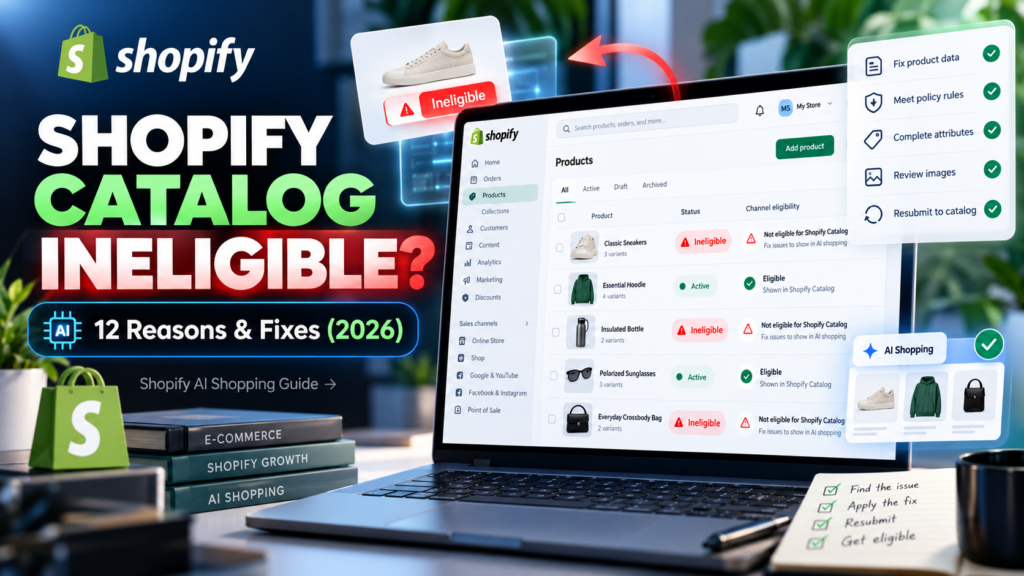
Updated October 14, 2026. Editorial standards: This independent Vervecta troubleshooting guide draws on official Shopify documentation, not a claim that we have tested every merchant account. Requirements, product exclusions, regional support, and the labels in your Shopify admin can change. Always check the specific message in your own store before making live changes.
You open Shopify Admin → Sales channels → Agentic, navigate to Sources → Shopify Catalog, and see the word Ineligible. That single warning can stop eligible-looking products from being distributed through Shopify Catalog to AI shopping experiences. For merchants preparing for ChatGPT or Microsoft Copilot product discovery, it is especially frustrating because a perfectly working online store is not the same thing as an eligible Catalog.
The solution is not to reinstall random AI apps or rewrite every product description. First establish whether the warning applies to the entire store, an individual product, or an AI channel. Then read Shopify’s reason and fix the relevant underlying requirement. Some changes, such as publishing a product or adding a missing image, are under your control. Others—account restrictions, a store-level opt-out, or eligibility based on operating history—may require Shopify Support or time.
This practical guide walks through 12 diagnostic causes of Shopify Catalog ineligibility, a fast error-message decision table, a safe repair workflow, examples, and the distinction between Catalog eligibility and AI-search ranking. It complements our Shopify products not showing in ChatGPT troubleshooting guide and Shopify Agentic Storefronts setup guide.
Quick answer: How do you fix Shopify Catalog Ineligible?
Open Shopify Admin → Sales channels → Agentic → Sources → Shopify Catalog and click the Ineligible warning. Read the specific reason before changing anything. Shopify may show a plan issue, password-protected store, B2B-only status, a limitation on store access, insufficient store/account standing, an opt-out notice, or a general requirements message. The right fix depends on the exact wording. Source: Shopify Catalog eligibility requirements and ineligibility messages.
- Identify scope. Is Sources → Shopify Catalog marked Ineligible for the whole store, or are you troubleshooting one missing item after the store itself became eligible?
- Read the actual reason. Click Ineligible, record the exact message, and check the relevant official requirements below.
- Fix the matching requirement. Update the plan, make the storefront accessible, fix publishing/URLs/price/images, or resolve account/eligibility notices as appropriate.
- Do not bypass restrictions. If a reason says to contact Shopify Support, do so rather than editing product metadata in circles.
- Allow processing time, then recheck. Shopify reviews eligibility over time. A successful product edit does not mean instant inclusion or guaranteed appearance in ChatGPT.
Important editorial distinction: Shopify does not present a list of exactly 12 separate official error codes. Its help center documents specific store-level messages and additional store/product eligibility requirements. The 12 reasons below organize those documented conditions into a practical merchant checklist; they are not invented Shopify UI labels.
First, understand the three different problems people call “ineligible”
Store-level Shopify Catalog Ineligible
In the Agentic dashboard, the Sources → Shopify Catalog area shows an Ineligible warning instead of a product count. According to Shopify, an ineligible store has no products in Shopify Catalog and cannot use Catalog Mapping there. This is a store access or eligibility diagnosis; optimizing image alt text will not resolve a locked account. Click the warning to read the store-specific reason. Source: Shopify Catalog and product discovery for agentic storefronts.
An eligible store with individual products missing
Your store can qualify while some products do not. A product might be unpublished, hidden from search, missing a required image, priced at zero, categorized as restricted, or routed through a headless storefront without the required publicly identifiable product URL. Here, an item-by-item audit makes sense. The Shopify Catalog Mapping tool becomes relevant after store-level eligibility is available, particularly when product data lives in metafields or metaobjects.
Catalog-eligible products that AI channels do not show
A product appearing in Shopify Catalog is not a promise that ChatGPT, Copilot or another AI service will recommend it. AI channels choose results based on shopper requests and their own ranking logic. Google AI Mode and Gemini also rely on the Google & YouTube / Merchant Center product-feed route rather than treating Catalog as the entire integration. If Catalog is eligible but a particular AI query yields nothing, that is a discoverability issue, not proof the Shopify Catalog warning is back. Sources: Shopify Catalog overview and Shopify agentic storefronts overview.
Shopify Catalog Ineligible error messages: fast diagnosis table
These are examples of actual message types documented by Shopify. Use the message displayed in your own account; do not assume two seemingly similar stores need the same fix.
| Message shown by Shopify | What it suggests | Best next step |
|---|---|---|
| Your current plan doesn’t support Shopify Catalog access for agentic channels. | Unsupported subscription | Review plan requirements; supported standard plans start at Starter, with a separate Agentic-plan path. |
| Your store is password protected. | Private storefront | Remove the storefront password if appropriate for your published store. |
| Your store only serves B2B customers. | Business-only audience | Review genuine D2C availability; do not reveal wholesale-only products or pricing. |
| Your store doesn’t currently meet the requirements for Shopify Catalog access. | One or more general rules not met | Audit policy standing, product requirements, visibility, and other store settings. |
| … A strong history of legitimate, well-managed orders will improve your standing over time. | Account standing and history | Build a genuine trading history; improve fulfillment and resolve compliance issues. |
| Your store is locked / Access to your store is restricted. | Store access limitation | Contact Shopify Support for the restriction and required remedy. |
| Access to your store is restricted while we update your data. | Processing-related restriction | Contact Shopify Support; do not force arbitrary changes. |
| Access to your store is restricted while it’s in development mode. | Development store | Follow the applicable transition to a supported paid plan. |
| Your store isn’t eligible for Shopify Catalog. | Unspecified eligibility limitation | Contact Shopify Support with the exact message. |
| Your store is opted out of sharing products with AI channels. | Store-level sharing restriction | Contact Shopify Support; the warning is distinct from the Agentic channel toggle. |
Temporary UI problem? If Shopify says “Catalog eligibility details are temporarily unavailable”, return later and contact Shopify Support if the issue persists. That is not the same as a confirmed permanent ineligibility judgment. Source: Shopify’s Agentic product-discovery instructions.
12 reasons your Shopify Catalog is ineligible — and how to fix each
Reason 1: Your Shopify plan does not support Catalog access
What happens: Shopify’s explicit unsupported-plan message appears in the Agentic dashboard. Standard storefronts generally require the Starter plan or higher. Do not confuse this with Shopify’s distinct Agentic plan, designed for eligible businesses operating an external storefront. That alternative has its own product-URL and identity requirements and must be evaluated separately.
How to fix it: In the Shopify admin, review the subscription under Settings → Plan and compare it with Shopify’s current Catalog requirements. Move to an appropriate plan only if it suits your actual business model; upgrading just to make a dashboard badge disappear is not a substitute for the remaining requirements. For an Agentic-plan merchant, use Shopify’s dedicated Agentic-plan setup guide instead of assuming the normal online-store publishing workflow applies.
Verification: Return to Agentic, reopen the reason, and confirm that any plan-related warning has cleared. If it remains, check whether another requirement has surfaced before purchasing further apps.
Reason 2: Your storefront is password-protected or in private mode
What happens: A store may be intentionally private before launch, or customers may see a password gate instead of the public product page. Shopify documents password-protected storefronts as ineligible on the standard route. This also prevents normal public product discovery for most shoppers.
How to fix it: For a live standard online store, check Online Store → Preferences or the equivalent current password-protection settings and remove the password when the store is ready to launch. Then open a product link in a private/incognito browser without signing in. Confirm the product page, price, and checkout entry point are genuinely accessible in an intended customer market.
Caution: Do not remove security from a store that should remain private. Agentic-plan stores that use an external storefront have a distinct setup path; Shopify explicitly permits some products through that route even before a Shopify-hosted store is published.
Reason 3: Your store is restricted to B2B or wholesale-only customers
What happens: Shopify’s agentic storefronts are designed for direct-to-consumer (D2C) shopping. A store limited to business accounts, company-specific catalogs, or login-only wholesale offers may be excluded. Shopify can display the documented message “Your store only serves B2B customers.” It can also exclude particular B2B-only products while allowing ordinary D2C products.
How to fix it: First decide whether you genuinely sell to consumers. If yes, check how the store’s B2B-only option, catalogs, markets and account requirements are configured, and make eligible D2C products available through normal consumer-facing sales channels. If no, do not make confidential trade prices public merely to pass an AI channel. For mixed B2B/D2C stores, verify that the D2C list price and access rules are accurate.
Special case: Custom third-party wholesale apps may hide prices in ways that Shopify cannot reliably identify. Audit the public experience, not just the B2B admin settings. Reference: Shopify’s B2B/wholesale product considerations.
Reason 4: The store is locked, restricted, processing or still in development mode
What happens: Shopify documents several distinct messages: “Your store is locked,” “Access to your store is restricted,” “Access to your store is restricted while we update your data,” and a development-mode access restriction. They may look similar in a short screenshot, but they are not interchangeable.
How to fix it: For a locked, access-restricted or data-processing warning, follow the official instruction to contact Shopify Support. For development-mode limitations, check the documented transition to a supported paid plan. Review any account notices in Shopify Admin. Keep your store ID, the exact error wording and the date when it first appeared for support.
Avoid: Creating duplicate stores to evade a restriction, modifying products randomly, or repeatedly disconnecting sales channels. Those actions are unlikely to resolve an underlying store-access decision and may make diagnosis harder.
Reason 5: Your account standing or trading history needs improvement
What happens: Shopify assesses factors beyond listing data, including legitimate order history, fulfillment, chargebacks, invoices, payments standing, account security and policy compliance. A strong catalog alone does not guarantee acceptance. Shopify may specifically say a history of legitimate, well-managed orders can help improve eligibility over time.
How to fix it: Verify your account email, enable two-step authentication, complete requested identity or business verification, pay outstanding Shopify invoices, maintain accurate fulfillment, and resolve policy and chargeback concerns. Build organic, real transactions through normal channels. Shopify does not publish a universal minimum order count or a fixed number of days after which a new store must be approved.
Verification: Keep a dated log of resolved account actions, then periodically review Sources → Shopify Catalog. If the account-standing explanation persists, ask Support what you can address. Never fabricate sales or reviews to manufacture an operating history.
Reason 6: The store is opted out of sharing product data with AI channels
What happens: Shopify documents a distinct reason: “Your store is opted out of sharing products with AI channels.” Importantly, Shopify says this reason is not the same as the usual Shopify Catalog access toggle inside Sales channels → Agentic.
How to fix it: Contact Shopify Support about the store-level sharing status and any available options. Separately, check your channel-specific access preferences under Agentic so you know which AI channels you intentionally permit. Do not promise that changing Allow Shopify to manage for me will override a special account-level opt-out when Shopify’s official instruction is to contact Support.
Privacy note: Store information shared through an AI commerce program should remain accurate and follow the relevant policy terms. Restricting catalog sharing does not necessarily stop ordinary web crawling of public pages.
Reason 7: Products are not published to an eligible sales channel
What happens: A product can exist in the admin without being publicly available on the correct storefront channel. Shopify Catalog’s normal product requirements include publishing products to Online Store, Hydrogen or Headless channels, with the proper route structure where applicable. Draft, archived or intentionally unavailable products should not be assumed to enter Catalog.
How to fix it: Go to Products, open a representative item and check its status and publishing availability. Publish it to the appropriate customer-facing channel if the product is intended for public sale. Revisit a few variants; a listing that appears active in one market may be inaccessible in another. For Hydrogen/Headless, confirm the published product routes meet Shopify’s documented URL convention.
Verification: Use a signed-out browser and a location relevant to your target buyers. Confirm that the product title, selectable variant, price and purchase path are visible to an ordinary customer rather than only to a logged-in staff user.
Reason 8: Required product information is missing or incomplete
What happens: Shopify’s explicit minimum requirements include a product title and at least one product image. A blank or misleading product record makes successful classification and shopping discovery more difficult. Product descriptions, categories, variants and other attributes are also important for relevance even when they are not each standalone minimum eligibility gates.
How to fix it: Audit a sample of items for a factual title, clear product photo, accurate description, variant details and properly assigned category. Start with the required elements, then improve attributes that help a person—and an AI shopping agent—answer what the product is, who it is for and why it matches a request. If your catalog uses metafields or metaobjects for descriptions, review Shopify Catalog Mapping after the store becomes eligible.
Example: “Headphones Model X” tells little about compatibility; “Over-ear wireless headphones with USB-C charging and 30-hour advertised battery life” may be more helpful if every claim is verified against actual specifications. Do not invent ratings, certifications or performance figures to improve perceived relevance.
Reason 9: The product price is zero or its selling data is unsuitable
What happens: Shopify’s eligibility documentation states that products must have a price greater than zero; free products are not included in Shopify Catalog. A wrong import or variant price can therefore cause exclusion. Separately, incorrect currency, stock and sale-price information can undermine a shopping result even if a product technically satisfies the price rule.
How to fix it: Open each affected product’s variants and verify current sellable prices, the correct currency/market context, and whether a listing genuinely represents a paid product. Do not add a fake nominal price to a free item simply to bypass a marketplace rule. Correct genuine catalog import errors in the original data source and resync normally.
Practical check: For a product with multiple options, inspect at least one typical in-stock variant and one edge case. Make sure the price shoppers see at checkout matches the price represented in the catalog where relevant.
Reason 10: A product has no valid identifiable URL, or the Agentic-plan external URL is missing
What happens: Eligible products must have an identifiable product URL. Hydrogen and Headless storefronts must use the applicable supported route format. If you use Shopify’s separate Agentic plan without publishing a Shopify online store, Shopify requires an external product URL for the items you want discovered.
How to fix it: Open a product’s public URL in a private window and confirm it resolves to that item. Check custom redirects and headless routing. For Agentic-plan merchants, populate the designated external product URL standard metafield according to Shopify’s documentation and test that it points to the correct publicly accessible listing on the external storefront.
Do not confuse this with canonical SEO: A preferred canonical URL may help search engines understand duplicate pages, but it does not replace the program’s requirement for an actual accessible product route. Avoid links that redirect every item to the home page.
Reason 11: The product is Unlisted or hidden from search engines
What happens: Shopify explicitly excludes products with Unlisted status or products hidden from search engines. A merchant can intentionally use these controls for private offers or test items, or may have left them enabled during a migration.
How to fix it: For items genuinely intended for public D2C sale, examine the listing visibility and search-engine settings and make the correct products publicly discoverable. Recheck a sample of product links after saving. Keep restricted or confidential products unlisted if that is the appropriate business decision. Do not switch a private item to public solely to make it appear in AI results.
Technical nuance: Shopify explains that blocking a web crawler in robots.txt affects open-web crawling, not necessarily the structured Catalog syndication route. Conversely, turning off an AI Catalog channel does not necessarily hide a public product from normal search engines. These different controls should not be treated as equivalent.
Reason 12: The item belongs to a restricted, sensitive, B2B-only or uncategorized product class
What happens: Shopify Catalog excludes certain categories based on Shopify’s classification of product information, which may differ from the category you selected manually. The official exclusions include, among other categories, alcohol, tobacco and vaping, weapons, some regulated medical goods, certain hazardous goods, mature content, event tickets, services/product add-ons, live animals and uncategorized products. Sensitive text or images can also lead to exclusion even when the chosen category seems innocuous. Exact category rules may change. Source: Shopify Catalog restricted categories.
How to fix it: Correct factual categorization mistakes, complete legitimate product attributes and remove inaccurate or unnecessarily sensitive text or images. But never mislabel a prohibited item as an allowed one. An accurately restricted product may simply be ineligible for this sales channel. For genuine classification errors, collect the product URL, catalog attributes and any applicable evidence before requesting clarification from Shopify Support.
Business implication: A mixed-category store may be eligible at the store level while restricted items never join Catalog. Treat store-level and product-level checks separately; do not delete your entire catalog in response to a few excluded products.
Step-by-step audit: Find the root cause without changing 500 products
Phase A: Confirm whether the whole Shopify Catalog is ineligible
- Sign in as the owner or an authorized user who can view Agentic and product information.
- Open Sales channels → Agentic, then find Sources → Shopify Catalog.
- If Shopify shows Ineligible, click it and copy the full reason into a private troubleshooting log.
- Match the message to the error table above. A plan or store-access problem should be fixed before product SEO work.
- Check for open administrative notices relating to subscription, identity verification, compliance or payment standing.
- After taking the official next step, record the date and recheck the status after processing time.
If the reason is “Catalog eligibility details are temporarily unavailable,” do not record that as a permanent refusal. Wait and escalate if the message persists. If the reason explicitly tells you to contact Shopify Support, use that route rather than purchasing a purported “AI eligibility fixer.”
Phase B: Audit five representative products before bulk editing
If the store is eligible but products are missing, select five representative SKUs: your best seller, one item with variants, a recently added product, an item from a different category and one known problematic item. Review the public URL, status/channel publication, image, price, category and visibility. A five-item test helps distinguish a systematic import error from an individual listing problem without accidentally rewriting hundreds of good products.
| Field | Pass condition | If it fails |
|---|---|---|
| Store Catalog status | Eligible and product count visible | Resolve store-level message first |
| Product status | Active and published where appropriate | Review publication/channel access |
| Title and image | Meaningful title and at least one genuine image | Correct the source product record |
| Price | Greater than zero for a paid item | Verify variant pricing, don’t invent prices |
| Product URL | Public, direct, identifiable listing | Fix routes, redirects, external URL if applicable |
| Visibility | Not Unlisted or hidden from search | Change only if public sale is intended |
| Classification | Category allowed under current Catalog policy | Correct errors or accept exclusion |
| AI channel | Appropriate channel access enabled | Check Agentic channel controls separately |
Phase C: Correct the system of record and validate the fix
When Shopify’s data came from an import tool, ERP, PIM or inventory system, editing one title by hand may only work until the next synchronization overwrites it. Identify the system of record, fix missing attributes upstream, and let the supported Shopify integration update the product. For Catalog Mapping, verify the configured source when metafields or metaobjects contain the product information. Shopify notes that mapping changes can take time to process.
Revisit the eligible product count and Catalog preview when available. Then conduct a separate storefront test and, where relevant, AI-channel discovery check. Do not treat an AI assistant’s answer as a deterministic test: rankings can vary by query, user, location and channel.
What if Shopify Catalog shows Eligible but products are still missing from ChatGPT?
Check Catalog inclusion before AI ranking
Open Agentic and review the Shopify Catalog product count. Where available, click through to mapping or preview tools. A listed item can be eligible for Catalog yet not rank for an arbitrary prompt. Test realistic buyer questions with factual product attributes: material, color, dimensions, use case, availability and shipping destination. Record which characteristics the product actually matches, not just your preferred keywords.
For a separate article focused on that exact post-eligibility problem, see Shopify Products Not Showing in ChatGPT? 12 Fixes. That guide concerns visibility and recommendation problems; this page focuses primarily on Catalog eligibility.
Distinguish ChatGPT/Copilot from Google AI Mode and Gemini
Shopify says ChatGPT and Microsoft Copilot can use Shopify Catalog through agentic storefronts, subject to supported access, conditions and each assistant’s selection process. Google AI Mode and Gemini use product data available through the Google & YouTube sales channel or Google Merchant Center. Check the specific channel configuration rather than expecting a single Shopify Catalog status to prove Google’s feed and shipping data are ready. Sources: Agentic storefronts overview, Google AI Mode and Gemini requirements.
There is also a difference between discovery and checkout. Shopify describes ChatGPT as a referral/discovery channel, with shoppers completing payment through the merchant’s storefront checkout. Supported direct-checkout flows for other channels have separate market and account rules. Fixing Catalog eligibility does not activate every checkout experience by itself.
Don’t confuse robots.txt with Shopify Catalog syndication
For the open web, crawlability, indexing and product metadata are important. Shopify documents that robots.txt controls may affect open-web crawler access, but they do not necessarily prevent structured Shopify Catalog data from being delivered to authorized active agentic channels. Likewise, an agent-discovery file such as /agents.md or /llms.txt is not a replacement for Shopify Catalog eligibility. Do not install paid “LLM file” services expecting them to override an Ineligible warning. Read Shopify’s product discovery and crawler guidance.
How to improve product quality after eligibility is restored
Write for product matching, not keyword repetition
Shopify recommends accurate, detailed product information that helps AI agents interpret titles, descriptions, images, categories and variants. For example, a shopper asking for a “compact carry-on backpack that fits a 16-inch laptop” needs dimensions, capacity, material, laptop sleeve size and usage details. Repeating “best backpack 2026” ten times does not supply those facts.
Build a standard attribute template appropriate to each category. Apparel may need fit, material and size chart; electronics may need compatibility, power and certification information; furniture may need assembly, dimensions and weight. Check the real product specifications before publishing any AI-assisted rewrite. The goal is trustworthy relevance, not fabricated search terms. Source: Shopify’s product optimization guidance.
Improve product variants, grouping and metafield mapping
Some stores keep meaningful features in metafields, metaobjects or separately published listings, so the default catalog representation may not reflect the best attributes. Once your store has Catalog access, use Shopify Catalog Mapping to review title, description and category sources, and to group equivalent variant listings where appropriate. Shopify documents that mapping changes process with a delay and that its preview is not an exact prediction of third-party AI ranking.
Keep option names understandable: “Size: Medium” communicates more than an internal shorthand such as “SZ-M2.” If you operate a PIM system, standardize units and field names at the source so that catalog imports and customer-facing pages remain consistent.
Make policies, availability and customer expectations consistent
Keep store contact information, shipping, returns, refunds, privacy and terms accurate. A policy page should reflect genuine merchant practice. Avoid promises of “worldwide shipping” if only a few countries are served. If products are seasonal or temporarily unavailable, use truthful inventory and variant settings rather than implying immediate availability to game product results.
Once the basics work, our guide to setting up Agentic Storefronts for ChatGPT, Gemini and Copilot explains separate channel requirements and monitoring.
Three real-world troubleshooting scenarios (illustrative)
Scenario A: A new fashion brand has great photos but no Catalog access
A merchant launches an elegant Shopify storefront with twelve well-photographed products and no sales history. Agentic shows an account-standing message indicating legitimate order history may improve eligibility. The merchant can verify identity, secure the account, maintain consistent fulfillment and resolve compliance notices, but cannot demand instant acceptance solely because the imagery is excellent. The correct response is to continue legitimate operations and check eligibility periodically—not to purchase a fake traffic package or create fraudulent orders.
Scenario B: A wholesale supplier is intentionally B2B-only
A supplier sells through company-specific Shopify catalogs with negotiated prices. Its public storefront is minimal because only verified business buyers may order. A B2B-only Catalog warning is consistent with Shopify’s D2C-oriented agentic storefront model. If the supplier has no consumer offering, it should preserve proper access controls. If it introduces genuine retail SKUs, it can review D2C publication and pricing without leaking contracted wholesale terms.
Scenario C: A store is eligible, but one sneaker never appears
A sneaker retailer sees an eligible Shopify Catalog product count. A newly imported item is missing from that count. Its title and image look fine, but the product is still Unlisted because the launch campaign has not started. The store-level issue is already resolved; only the item’s visibility needs attention. Once the merchant legitimately publishes it and the data processes, the item may enter Catalog, but ChatGPT still chooses what to recommend for any particular shopping query.
All scenarios are educational composites, not case studies of identifiable merchants and not claims of hands-on Vervecta testing.
When should you contact Shopify Support?
Do so when Shopify’s official message says the store is locked, restricted, undergoing access-limiting data processing, generally ineligible without a user-fixable reason, or opted out of sharing products with AI channels. Also contact Support when Catalog eligibility details remain unavailable or a verified requirement appears satisfied yet the dashboard continues to show a contradictory error after reasonable processing time.
What to send so support can investigate faster
- Your myshopify.com store identifier (do not share passwords, authentication codes or private API tokens).
- The exact message under Sales channels → Agentic → Sources → Shopify Catalog.
- When the error started and whether it appeared after a plan change, store launch, bulk import or channel adjustment.
- Whether the error affects the whole store or selected product handles/URLs.
- Relevant screenshots with customer data and sensitive financial details redacted.
- A brief chronology of legitimate steps you already took, including saved changes and dates.
Ask support to identify the eligibility requirement or account restriction they can confirm and any merchant action required. Shopify may be unable to reveal every proprietary signal in its trust or recommendation systems. Avoid demanding a guarantee of rankings or a date of first appearance in AI shopping results.
How long does a Shopify Catalog eligibility fix take?
There is no single official guaranteed timeframe. Some changes, such as changing a product title, saving an image or correcting publishing status, are immediate in the admin but may still need downstream processing. Account-standing assessments are reviewed over time. Restrictions requiring Shopify Support depend on the underlying account issue. New market or AI-channel features may be released gradually.
For a useful internal workflow, take a baseline screenshot, record the change and time, and schedule a follow-up check after processing rather than pressing Save dozens of times. If Shopify explicitly says its Catalog data is being updated, the correct remedy in the requirements table is to contact Shopify Support. Do not invent a “24-hour fix” or a “seven-day guarantee” in merchant-facing support tickets.
Shopify Catalog eligibility checklist you can copy
- Store subscription or Agentic-plan path is genuinely supported.
- Store is not improperly password-locked, development-restricted or B2B-only for the intended consumer route.
- Account email and required identity details are verified; security and policy notices are addressed.
- Real fulfillment and payment history is in good standing where applicable.
- The store is not subject to an AI-sharing opt-out or other unresolved platform restriction.
- Representative products are actively published to the correct eligible storefront channel.
- Product titles and at least one accurate image are present.
- Paid product prices are greater than zero; variants, inventory and currencies are accurate.
- Every item has a valid, identifiable product URL, or the required external URL for Agentic-plan stores.
- Products meant for public sale are not Unlisted or hidden from search engines.
- Products and product imagery comply with Shopify Catalog’s current category/content restrictions.
- Catalog, channel access and actual AI ranking are measured as three separate stages.
Frequently asked questions about Shopify Catalog Ineligible
1. Why does Shopify Catalog say Ineligible when my store is live?
Being live is only one requirement. An active store can still be on an unsupported plan, have account-standing concerns, sell only to business buyers, be restricted by Shopify, or fail other Catalog rules. Click the Ineligible warning in Agentic to see the exact reason.
2. Where is the Shopify Catalog Ineligible message?
Go to Shopify Admin → Sales channels → Agentic → Sources → Shopify Catalog. Eligible stores may see an included product count. An ineligible store may see an Ineligible warning that can be clicked for details.
3. Is Shopify Catalog the same as Google Merchant Center?
No. Shopify Catalog is Shopify’s structured product-data source. Google AI Mode and Gemini use supported Google & YouTube / Merchant Center synchronization. A positive status in one system does not automatically verify every requirement in another.
4. Do I need Shopify Plus to appear in AI shopping?
Not as a general Catalog requirement. Shopify states that supported standard stores start at Starter or higher, subject to the rest of its eligibility rules. The distinct Agentic plan has its own setup requirements.
5. Can a new Shopify store qualify without many orders?
Shopify evaluates account history and standing over time but does not provide a universal minimum order threshold for all merchants. A new store may need time to build a genuine operating history. Do not use fabricated orders to accelerate this.
6. Will removing my store password immediately make me eligible?
Not necessarily. It can resolve the password-protected storefront requirement on the standard route, but plan, account standing, product and policy requirements still apply, and processing may take time.
7. Can B2B-only Shopify products enter agentic storefronts?
Shopify’s agentic storefronts are D2C-focused. It excludes recognized B2B-only products and may mark an entirely B2B store ineligible. Mixed stores should verify legitimate public D2C offers and prices.
8. Are free products included in Shopify Catalog?
Shopify’s official requirements state products must have a price greater than zero, so free products are not included. Do not change a genuinely free item’s price to a misleading value simply to qualify.
9. Can I fix a restricted product by changing its category?
Only correct genuine classification mistakes. Shopify may exclude regulated, sensitive, mature or otherwise prohibited products using its own classification of your data. Mislabeling a restricted item does not make it compliant.
10. Does an Eligible status guarantee a product appears in ChatGPT?
No. It means the product may be available to relevant channels through Catalog, not that the channel will select it for every customer prompt. Product relevance, ranking and channel behavior are separate matters.
11. Does updating robots.txt fix Shopify Catalog Ineligible?
No. Shopify explains that the Catalog syndication mechanism and open-web crawling are separate. A robots.txt adjustment cannot override store-level eligibility, an account restriction or missing required product information.
12. Can I use Shopify Catalog Mapping while the store is ineligible?
Shopify says an ineligible store has no products in Catalog and no access to Catalog Mapping. Resolve store-level eligibility first, then use mapping for product fields, custom metafields and grouping when available.
13. What if the error says eligibility details are temporarily unavailable?
Check back later. If the message persists, Shopify recommends contacting Support. It should not be treated automatically as a final refusal.
14. How long after fixing a product will it show in AI search?
No universal deadline is guaranteed. Shopify processes product data and AI channels decide when or whether an eligible product appears. Record the correction, monitor Catalog inclusion and distinguish that from downstream AI recommendations.
15. Why does the warning say my store opted out of AI sharing?
Shopify documents a separate store-level sharing warning that is not simply the Agentic channel toggle. Its recommended action is to contact Shopify Support about that status.
16. Should I buy an AI SEO app to repair the warning?
Not before diagnosing it. An app cannot legitimately remove a Shopify account lock or an official disallowed-product classification. First determine whether the problem is store access, product data, channel controls or ranking.
Final verdict: Fix eligibility first, then optimize AI product discovery
The most reliable way to resolve Shopify Catalog Ineligible is to diagnose the exact store-level reason, repair the applicable account or product requirement, and verify that the Catalog product count returns. There is no single switch, plugin or guaranteed waiting period that fixes every store. Treat policy restrictions and customer trust seriously; store eligibility is not worth compromising a legitimate business model.
After Catalog access is restored, focus on accurate product details, meaningful variant data, transparent policies and the separate setup required by each AI channel. Review Vervecta’s guides to fixing missing Shopify products in ChatGPT and setting up Shopify Agentic Storefronts for the next stage. If you want to automate accurate product-data operations, see our Zapier vs Make vs n8n comparison; automation is useful only after you know which system owns the source data.
Official references and how this guide was researched
These sources are primary Shopify documentation. This is an independent educational guide, not a sponsored article or a representation that Vervecta has performed a merchant-account test of each scenario. Where we recommend an operational workflow, we distinguish it from Shopify’s explicit platform eligibility requirements.
- Shopify Help Center — Requirements for being included in Shopify Catalog, official messages and excluded categories
- Shopify Help Center — Shopify Catalog and product discovery for agentic storefronts
- Shopify Help Center — Shopify Catalog overview
- Shopify Help Center — Optimizing products for AI platforms
- Shopify Help Center — Catalog Mapping and customized product data
- Shopify Help Center — Managing agentic storefronts
- Shopify Help Center — Agentic storefronts overview
- Shopify Help Center — Agentic-plan setup
- Shopify Help Center — Selling on ChatGPT
- Shopify Help Center — Selling on Google AI Mode and Gemini
Disclosure: Shopify and other mentioned trademarks belong to their owners. Product scenarios above are illustrative. No subscription fees, paid partnership, rank improvements or access approvals are promised in this article. Review Shopify’s current terms and local regulations before changing catalog visibility or data sharing.