
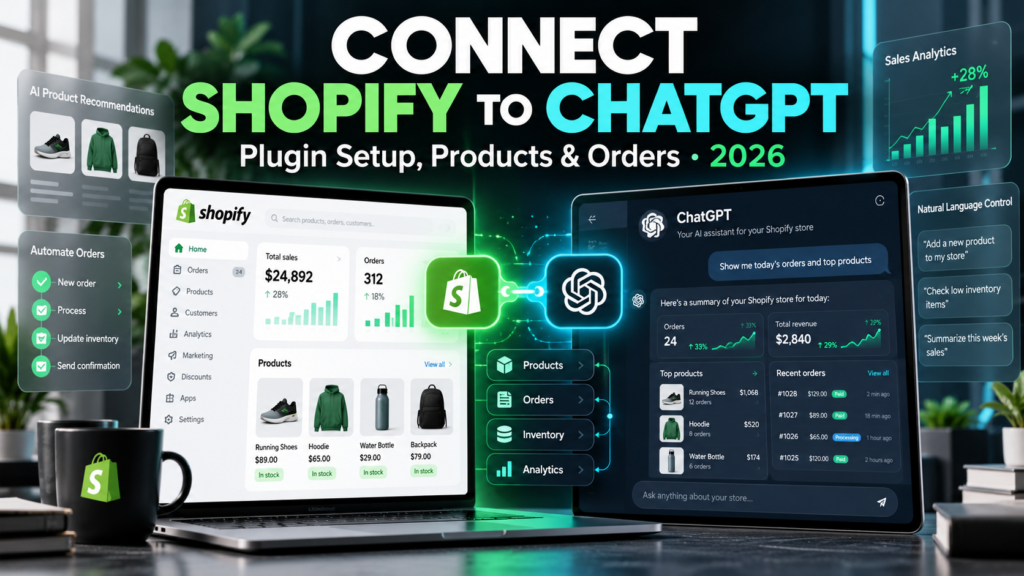
Updated October 15, 2026. Vervecta editorial disclosure: This independent implementation guide is based on the current official Shopify and OpenAI documentation. We have not connected to an individual merchant account for this article, and the example products, prompts, and figures below are illustrative rather than test results. ChatGPT interface labels, plan availability, permitted actions, and Shopify features can change. Confirm each action and permission inside your own account before making changes.
Want to connect Shopify to ChatGPT without writing custom code? Shopify now offers an official Shopify plugin for ChatGPT that lets merchants interact with an existing store through a conversation: look up orders, inspect products and stock, ask about sales performance, create product listings, organize collections, and perform certain permitted edits. Rather than copying spreadsheets into an AI chat, an authorized connection can retrieve relevant store information directly, subject to the access you approve.
That convenience introduces an important decision: what should the assistant be allowed to read, and what should it be allowed to change? Connecting a store is not the same as giving an AI tool permission to do anything. Some tasks are read-only, some require write access, and some sensitive commerce operations are deliberately blocked. Understanding those boundaries is central to a reliable implementation.
This detailed 2026 guide covers installation, authentication, safe prompts for products and orders, inventory controls, analytics, discount codes, troubleshooting, costs, and a practical first-week rollout plan. We also explain the often-missed difference between managing your Shopify store with ChatGPT and making your products discoverable to shoppers using ChatGPT. They are separate workflows.
Quick answer: How do you connect Shopify to ChatGPT in 2026?
Install Shopify’s official ChatGPT plugin from ChatGPT, sign in to the Shopify store you own, review the requested access level in Shopify, and approve the connection. Then start a conversation that explicitly invokes @Shopify and ask for a low-risk, read-only task such as a product list or recent-order summary. Shopify says this plugin is not installed from the ordinary Shopify App Store, and it recommends a desktop browser for initial setup. The actions available afterward depend on your staff permissions and the level of data access you approve.
- Open the official Shopify ChatGPT plugin page or the Shopify listing from OpenAI.
- Start the plugin installation in ChatGPT and choose the existing-store connection option.
- Follow the redirect to Shopify and authenticate with an authorized owner or staff account.
- Review the data categories and access level before you approve the authorization.
- Return to ChatGPT and ask: “@Shopify Which store is currently connected?”
- Run a read-only test, such as listing a few active products or viewing your most recent orders.
- Only enable or use write operations after a documented review process is in place.
Official setup and capability references: Shopify plugin for ChatGPT and Authorizing AI tool access.
First, separate the Shopify ChatGPT plugin from ChatGPT shopping
The phrase “Shopify and ChatGPT integration” can describe two different experiences. Confusing them is one of the quickest ways to choose the wrong setup path or misunderstand your reports.
| Question | Shopify plugin for ChatGPT | Shopify Agentic Storefronts |
|---|---|---|
| Who uses it? | The merchant or authorized store operator. | Shoppers searching and purchasing through AI channels. |
| Primary purpose | Read and manage Shopify store information from a conversation. | Make eligible product information available for AI discovery and shopping. |
| Typical tasks | Check orders, edit products, inspect inventory, query analytics, create discounts. | Product discovery, comparisons, recommendations, and supported shopping flows. |
| Main prerequisite | Install the plugin, connect the correct Shopify store, approve access. | Meet Catalog/channel requirements and configure AI channel access as applicable. |
| Does one replace the other? | No. | No. |
The Shopify plugin does not automatically guarantee that buyers will see your products in ChatGPT shopping answers. If customer-facing discovery is the real goal, read our guides on setting up Shopify Agentic Storefronts, fixing products not showing in ChatGPT, and optimizing Shopify product listings for AI shopping agents.
Shopify ChatGPT plugin prerequisites and access requirements
Use a Shopify account that can authorize the connection
Start by signing in to the correct Shopify organization and store. If you manage several storefronts, write down the exact store domain you intend to connect. Shopify indicates that the assistant works with one connected store at a time; switching to a different store requires authorization for that store. A saved conversation from an older connection may still reference the original store, so use a fresh conversation after switching.
Staff members cannot grant permissions they do not have. For example, if the current Shopify user cannot access a particular category of customer or order information, the connected integration should not be treated as a shortcut around that restriction. Ask a store administrator for appropriate access rather than using a shared owner password.
Understand the data-access choice before approving
Shopify differentiates between reading store data and modifying it. Read access is appropriate for analytics, product lookup, order inspection, and operational questions. Write access is relevant when you want to create products, update listing details, adjust inventory, create collections, or perform other permitted changes. Additional access can require fresh authorization, and some integration features remain read-only by design even when broad access has been approved.
Choose the smallest useful level for the task. A marketing analyst asking for weekly sales should not automatically need the same authority as a catalog manager editing hundreds of products. For an initial rollout, a limited read-only test can expose wrong-store connections, misleading prompts, or unexpected data before any live listing is changed.
Prefer the official integration, not an unknown app asking for your credentials
Shopify’s own Help Center states that its ChatGPT plugin is installed from ChatGPT, not by searching for it in the Shopify App Store. Follow the official page rather than downloading an extension from an unrelated website. If you are prompted to type your Shopify password into an unfamiliar form, stop and verify the domain and authorization flow. Do not paste Shopify Admin API tokens, private app keys, payment details, or customer exports into ordinary chat messages.
Know which work still requires Shopify Admin
The plugin is a useful operational layer, not a replacement for the entire Shopify admin. Shopify explicitly reserves tasks such as completing payment, tax, domain, and other launch settings for the admin. The plugin also cannot refund or cancel paid orders, capture payments, mark orders as paid, handle returns, or create and adjust gift cards through the blocked actions documented by Shopify. Build your workflows around the functions it actually supports.
Step-by-step: Install the Shopify plugin in ChatGPT
Step 1: Connect Shopify to ChatGPT Using the Official Plugin
On a desktop browser, visit Shopify’s ChatGPT integration page and select the option to connect Shopify to ChatGPT. You can also navigate to the Shopify plugin listing from OpenAI. The precise button or panel placement can differ between ChatGPT interfaces and account configurations; use the official install route rather than relying on an outdated screenshot.
Step 2: Choose an existing store or a new-store preview
If you already sell through Shopify, select the flow for connecting an existing store. Shopify also offers storefront-preview generation and claiming a new store through ChatGPT; that is a separate business-creation flow and is unnecessary for a merchant who merely wants to operate an existing catalog. Do not accidentally claim a new store when your intention is to connect an established one.
Step 3: Connect Shopify to ChatGPT and Review Permissions
Complete Shopify authentication after the redirect. Read the requested permissions and consider what data the plugin can access, including products, customer details, orders, and analytics where available. Shopify’s authorization flow requires explicit confirmation. If a later operation needs elevated write permission, expect another approval step rather than assuming the original read access covered every future action.
Step 4: Confirm the connected store
Return to ChatGPT and ask the plugin to identify the connected store. Confirm its name and domain, especially if you operate a development store or multiple brands. Once connected, Shopify’s own instructions recommend explicitly invoking the integration—commonly with @Shopify—so a request is answered from your real store rather than from the assistant’s general knowledge.
Step 5: Perform a reversible or read-only test
Start with “@Shopify Show my 5 newest active products and their prices.” Compare the output with Shopify Admin → Products. Next, ask for a recent-order summary and verify the totals. If either result looks wrong, pause instead of editing inventory or creating promotions. A reliable setup should match the source of truth before taking actions.
Step 6: Document your operating rules
Before expanding usage, decide who can request write operations, which changes require a second human reviewer, how discounts are approved, and how you verify edits. Even a small shop benefits from a simple change log that records the date, product ID, old value, new value, person approving, and outcome.
What can the Shopify ChatGPT plugin actually do?
| Task | Documented behavior | Permission or limitation |
|---|---|---|
| Find products | Search products and open detailed listings. | Read access. |
| Create or edit products | Create items, edit listing fields, variants, prices, and statuses. | Appropriate write access and account permissions. |
| Update product status | Activate, draft, or archive limited groups of products. | Shopify describes status batches of up to 50. |
| Review orders | List and inspect orders, fulfillment, customer details, and tracking. | Read-only for orders; listing limits apply. |
| Manage inventory | Read variant stock by location and set a specific quantity. | Write permission; check current quantity first. |
| Analyze performance | Answer Shopify sales and store analytics questions with tables or charts. | Read-only analytics; use precise questions. |
| Create discounts | Create percentage-off codes under supported conditions. | Creates supported codes, not every discount type. |
| Refund, cancel, capture payment | Not supported through the plugin. | Use the Shopify admin. |
Source: Shopify’s supported actions and limitations. Some interfaces also expose a Shopify panel beside the conversation so you can review fields before saving; not every task uses that panel.
Manage Shopify products from ChatGPT: safe examples
List products and identify incomplete listings
The simplest high-value use case is asking for a targeted catalog view. Try: “@Shopify List the 10 active products with the lowest prices. Include title, price, variant count, and stock status where available. Do not change anything.” This narrows the question and makes the answer easy to verify against Shopify Admin.
For a product-data review, ask for one collection at a time. Avoid a vague request such as “Fix all my products,” which can hide different merchandising problems behind one broad instruction. For large catalogs, work in small groups and inspect each result.
Create a draft product with factual specifications
Shopify documents product creation through the ChatGPT plugin, including title, description, price, variants, and inventory tracking. A useful prompt supplies the facts rather than relying on the assistant to invent them:
@Shopify: Create a new draft product titled “Stainless Steel Insulated Bottle – 750 mL.” Price: $29.00. Material: food-grade stainless steel. Colors: black and forest green. Do not claim a temperature-retention duration unless I supply tested specifications. Show me the draft fields before I publish it.
After the item is created, check the title, price, SKU, variant inventory, image, tax treatment, fulfillment settings, and sales-channel visibility inside Shopify. A coherent draft is not the same as a sales-ready listing. If you want a framework for writing richer product descriptions, see Vervecta’s AI shopping product-listing checklist.
Edit prices or descriptions one product at a time
Shopify says the plugin can update product fields such as title, descriptions, variant prices, images, and SKUs. A safe request names the exact product or product ID and the intended change. For instance: “@Shopify Find product SKU BOTTLE-750-BLK. Tell me its current price and inventory. Do not edit it yet.” Then, after verification: “Set that exact variant’s price to $29.00 and show the updated value.”
Do not authorize blanket repricing based on an invented competitor analysis or an unverified currency conversion. For products with complex option combinations, examine one representative variant before applying edits to an entire family.
Understand bulk-status limits
Shopify documents updating product status for groups of up to 50 products through supported batch behavior. That is not a promise that every possible field can be mass-edited. A collection-wide status change can make many products disappear from the storefront at once, so ask first for the exact affected list and count. Record the current state before confirming an archive or activation operation.
Review Shopify orders in ChatGPT without risking payment operations
Find recent orders and fulfillment exceptions
The plugin can read recent order lists and individual order details. Example: “@Shopify Show my 20 most recent orders with order number, total, payment status, fulfillment status, and order date. Do not change any order.” Shopify documents order listing limits, so a query requesting thousands of records at once is not an appropriate reporting plan.
Operationally, this is useful for finding unfulfilled orders, orders with certain statuses, or customers who need a follow-up. But the correct next step for a return, refund, capture, or cancellation remains Shopify Admin or a separately authorized workflow—not an attempt to bypass the plugin’s blocked actions.
Inspect one order for support context
Ask for a specific order only when necessary: “@Shopify Open order #1043 and summarize its line items, fulfillment status, and tracking information. Exclude the full customer address from your summary.” Shopify can provide shipping details if your permissions allow it, but exposing unnecessary personal information to a group chat or copied report is poor operational practice. Share the minimum data needed for the support decision.
Understand what “automate orders” does not mean
The phrase “automate orders” often appears in promotional illustrations, but it can be misleading. The official Shopify plugin can look up orders; Shopify explicitly says it cannot perform certain payment or order-state changes. If your business needs automated fulfillment, refunds, or return processing, evaluate an approved workflow or specialized application through Shopify, and verify its exact permissions and audit trail.
Check Shopify inventory with ChatGPT
Audit stock by SKU, variant, and location
Inventory is more nuanced than a single quantity per product. A blue medium shirt and a red large shirt may have different stock levels; multi-location stores may have separate counts for each warehouse. Ask the plugin to show the inventory levels for every variant and location of a particular product before editing. For example: “@Shopify Show available inventory for every variant of the Trail Runner product, broken down by location. Flag any quantity below five.”
Make a controlled stock adjustment
Shopify supports setting a quantity for a specified item and location with an adjustment reason such as received, damaged, or correction. Verify the existing quantity and physical stock before requesting a change. Example: “@Shopify Read the current available inventory for SKU SHOE-TRAIL-BLK-42 at the London warehouse. If it is still 12, set available inventory to 18 with reason received. Stop if the current value changed.”
The plugin checks the existing count before applying a supported adjustment, which helps reduce collisions with concurrent updates. That safeguard does not replace a physical inventory process, particularly if other integrations are also changing stock. Recheck the final count after the update.
Analyze Shopify sales with ChatGPT
Use narrow questions instead of giant dashboards
Shopify documents natural-language analytics across sales, products, customers, and fulfillment, with tabular and chart outputs. The strongest prompts are specific about metric, date range, and grouping. For example: “@Shopify Show total sales for the last 30 completed days, grouped by product. Return the top 10 products and their share of sales.”
Other useful questions include average order value for this month versus last month, new versus returning customer counts, and products that sold slowly. Define the comparison windows explicitly when presenting results to management. A rolling 30-day window is not always interchangeable with a calendar month.
Check analytical definitions before interpreting results
Analytics can differ depending on whether you include refunds, taxes, discounts, shipping, or draft orders. ChatGPT can help summarize the numbers, but the source of truth is Shopify’s underlying analytics definition. Record the date range, currency, time zone, selected metric, and filters when exporting insights for a meeting or business decision.
For merchants who want to measure customers arriving through AI channels rather than just use ChatGPT as an operator, read How to Track ChatGPT Sales in Shopify. That is a distinct attribution problem; connecting the administrative plugin does not automatically mean every sale originated from ChatGPT.
Create supported discount codes from ChatGPT
Use explicit promotion rules
Shopify says the plugin can create percentage-off discount codes with conditions such as product or collection eligibility, minimum order requirements, start dates, and customer applicability. It does not claim to support every discount type, and it does not edit all existing discounts. A careful prompt might be:
@Shopify: Prepare a 10% discount code named AUTUMN10 for the Accessories collection, with a $50 minimum order and a start date of October 20, 2026. Show the conditions and affected products for approval before creating it. Do not enable any other promotion.
Verify stacking behavior, end dates, existing campaigns, and margin before approval. Creating a discount is a financial decision even if the action is technically simple. Restrict it to authorized staff.
ChatGPT prompts for Shopify merchants: copy-ready examples
The following examples are designed to be bounded, verifiable, and safe. Replace sample product names, time periods, and SKU values with your own. The exact wording is illustrative and does not guarantee every underlying action is available to every plan or permission level.
| Goal | Suggested prompt | Verify afterward |
|---|---|---|
| Connection check | “@Shopify Which Shopify store are you connected to? Show name and domain only.” | Correct store and domain. |
| Product snapshot | “@Shopify List 10 active products and their current prices. Do not edit.” | Match Admin → Products. |
| Low-stock review | “@Shopify Show stock by variant and location for [product]. Flag values below five.” | Inventory counts and location. |
| Order exceptions | “@Shopify Show 15 recent unfulfilled orders with status and order date. Do not modify orders.” | Actual order statuses. |
| Monthly overview | “@Shopify Compare total sales for September and August 2026. State the currency and metric definition.” | Same filters and date basis. |
| Safe product draft | “@Shopify Create a draft listing from these verified product specifications. Do not publish.” | Price, specs, SKU, variants. |
| Collection research | “@Shopify Find products tagged travel and list their titles before I change collections.” | Correct product population. |
| Discount planning | “@Shopify Outline a 10% code for [collection] but do not create it yet.” | Rules, margins, eligibility. |
Prompt design rule: for actions with business consequences, ask the tool to read → propose → confirm → change → verify rather than issuing several unrelated instructions in one message.
Connecting ChatGPT safely: permissions, privacy, and governance
Minimum necessary data access
The Shopify integration operates under the permissions you authorize and the authority of the user account. Begin with read-only access where that meets the business objective. Escalate only for a specific change that a named person has approved. Shopify documents that access can be revoked by uninstalling the integration from the Shopify admin; to reduce access, you may need to uninstall and reconnect with the narrower authorization.
Customer records and sensitive information
Order and customer queries can contain names, emails, addresses, and purchase histories. Limit who can view these records, avoid copying customer information into external documents or public chats, and maintain your own privacy-policy obligations. If a question can be answered with aggregate sales or anonymized counts, prefer that to an individual customer lookup.
Operational review for write actions
Write a one-page internal procedure that says which actions require approval. Typical high-priority changes include activating products, changing prices, setting large inventory adjustments, and creating discount codes. Review the old and new values. For high-volume work, remember Shopify says some batch edits are limited and operations may stop partway. Never assume a multi-item request succeeded completely: inspect the actual store afterward.
Be realistic about AI mistakes
Natural-language tools can misunderstand ambiguous product names, summarize sales under unexpected date windows, or propose invented copy. Ask for identifiers, exact filters, and source records where possible. Maintain a human confirmation process for anything affecting shoppers, payments, stock, legal claims, and customer communications.
Shopify ChatGPT plugin pricing in 2026
Shopify says there is no additional Shopify fee just for using its official ChatGPT plugin. Your normal Shopify plan fees still apply to the store, and any applicable ChatGPT subscription charges are paid to OpenAI rather than Shopify. The availability of a given ChatGPT feature or plugin may depend on the plan, account, and product rollout.
That distinction matters when comparing alternatives. An external AI app charging a monthly subscription is not the same product as Shopify’s first-party ChatGPT plugin. Likewise, Shopify’s Agentic Storefronts channel and the merchant management plugin solve different problems; their setup and eligibility requirements should not be conflated.
Should you use the official plugin or build a custom automation?
The first-party Shopify plugin is a sensible starting point when you want a conversational interface for occasional store-management tasks. But a direct integration is not automatically the best answer for every business problem. Consider the difference between asking an assistant to summarize yesterday’s orders and automatically routing 500 new orders into a fulfillment system. The latter involves triggers, retries, audit logs, exception handling, and contractual delivery requirements that a conversational prompt alone should not be expected to satisfy.
Where the official plugin is a strong fit
Use the plugin for questions that start with a human operator and have a clearly defined result: finding products, preparing drafts, reviewing small groups of orders, checking variants by location, and asking bounded sales questions. These interactions are easy to supervise, and the operator can inspect Shopify Admin afterward. They are also well suited to business owners who want quick answers without designing an automation flow.
Where a workflow platform may fit better
For recurring cross-system processes—such as transferring paid-order records to a warehouse platform, sending approved customer support notifications, or reconciling invoices across systems—evaluate a purpose-built workflow with explicit triggers and error handling. Such workflows may use Shopify’s authorized APIs and tools such as Make, Zapier, or n8n, but they introduce their own subscriptions, maintenance responsibilities, and permission boundaries. Before choosing a platform, define the precise event, what should happen when the destination is unavailable, and how duplicates will be prevented.
For a broader comparison, see Vervecta’s Zapier vs Make vs n8n guide and AI workflow automation tools comparison. Do not assume the official conversational plugin exposes unrestricted automation or Shopify API coverage simply because a workflow platform can support other custom integrations.
When you should not connect an AI tool at all
Delay the connection if your store has unresolved account ownership issues, shared administrator credentials, an unclear policy for handling customer records, or staff who cannot distinguish a draft from a live change. First establish secure sign-in, clear permissions, and a review procedure. A store with sensitive contractual restrictions may also need internal legal or security approval before any third-party tool receives order or customer information. Choosing not to connect until the governance basics are ready is a valid operational decision.
Troubleshooting: Shopify won’t connect to ChatGPT
Shopify to ChatGPT Connection: Missing Plugin or Install Page
Shopify explicitly says this plugin is installed from ChatGPT, not the Shopify App Store. Use its official plugin page or OpenAI’s plugin listing. If the option is unavailable in your ChatGPT interface, check plan/account availability or use the supported desktop setup route. Do not download an unofficial replacement that claims to be the same integration.
Authorization loops back to the wrong Shopify store
Confirm you authenticated with the intended Shopify account. If you have multiple storefronts, ask the plugin to switch stores and follow the new authorization flow. Start a new conversation after switching, because an older chat may still be associated with a previous store.
The plugin can see products but cannot edit them
This is commonly a permissions or access-level issue rather than a technical failure. Shopify distinguishes read from write capabilities, and an elevated operation may trigger another authorization request. Verify the Shopify staff permissions of the connected user. Do not attempt to bypass a denied action with a pasted Admin API credential.
An order lookup works, but a refund or cancellation fails
This is expected behavior under Shopify’s documented safeguards. The plugin can read order data, but it cannot perform the blocked financial or order-state actions such as refunds, payment capture, cancellations, or returns. Use Shopify Admin for those operations.
A product update changed the wrong item
Stop making further edits. Compare product IDs, SKUs, options, and affected variants in Shopify Admin. Reverse incorrect changes using the original recorded values where possible. When retrying, specify an exact product or SKU and ask for a read-only preview first.
A bulk update only changed some products
Shopify warns that multi-item operations may stop partway, and some status actions have explicit limits. Review the actual changed list, confirm which products remain untouched, and finish the rest in smaller, verified batches or directly in Shopify Admin. Never repeat the full update without checking what has already changed.
Analytics look different from Shopify Admin
First compare date range, currency, time zone, metric definitions, and filters. Ask one analytical question at a time. If you still find a discrepancy, use the Shopify report as the source of truth and document exactly which metric the conversational response used.
First-week rollout plan for a Shopify team
For a business owner with limited time, a staged rollout is safer and usually more productive than trying every feature immediately.
| Day | Objective | Success check |
|---|---|---|
| Day 1 | Install the official plugin; confirm store identity and read-only permissions. | Correct domain shown. |
| Day 2 | Test product lookup and compare five records with Shopify Admin. | Titles, SKUs, prices match. |
| Day 3 | Test recent-order queries and analytics comparisons. | Status and reporting windows match. |
| Day 4 | Write an internal approvals policy for catalog, inventory, and discounts. | Named reviewer and change log. |
| Day 5 | Trial one approved draft product or low-risk catalog edit. | Correct item and fields verified. |
| Day 6 | Test an approved inventory adjustment or supported promotion only if needed. | Old/new values recorded. |
| Day 7 | Review outcomes, access levels, and any errors; decide whether to expand use. | Clear next steps and owner. |
The timeline is an editorial rollout suggestion, not a mandatory Shopify setup sequence. A solo seller can combine steps; a larger team may need more review time, especially for customer information and pricing changes.
Frequently asked questions: connecting Shopify to ChatGPT
Can I connect an existing Shopify store to ChatGPT?
Yes. Shopify documents connecting a store you already own, then interacting with products, orders, customers, inventory, discounts, and analytics under approved permissions.
Where do I install the official Shopify ChatGPT plugin?
From ChatGPT via the official Shopify plugin installation page. Shopify says it is not installed through the regular Shopify App Store.
Do I need programming skills or a private API key?
Not for the standard official plugin authorization flow. It uses sign-in and permission approval. Advanced custom integrations are separate and have different security considerations.
Is the Shopify plugin for ChatGPT free?
Shopify says it charges no extra Shopify fee for using its official ChatGPT plugin. Standard Shopify plan charges continue, and applicable ChatGPT subscription costs are separate.
Can ChatGPT create or update Shopify products?
Yes, within supported actions and approved write access. It can create product records and update fields such as title, description, status, variant prices, and SKUs.
Can ChatGPT refund or cancel Shopify orders?
No. Shopify explicitly blocks those operations in the plugin. Use Shopify Admin.
Can ChatGPT see customer information?
Customer lookup is a documented read capability, subject to the connected user’s permissions and approved data access. Handle personal information carefully.
Can ChatGPT manage inventory by warehouse?
Shopify documents reading variant inventory across locations and setting an available quantity at a specified location under supported permissions.
Can ChatGPT create a discount code?
Yes, the official plugin supports certain percentage-based codes with conditions. It does not cover every discount configuration or all edits to existing codes.
Does connecting Shopify mean my products appear in ChatGPT shopping?
No. Merchant-facing management and shopper-facing discovery are separate. AI shopping eligibility and channel settings should be checked through Shopify Agentic Storefronts and Shopify Catalog documentation.
Can I connect more than one Shopify store?
Yes, but Shopify says the integration works with one connected store at a time. Switching requires authorization for the next store.
What if a staff member has read access but wants to edit a product?
The operation can require a higher access level and adequate Shopify staff permissions. Use the normal authorization process rather than sharing an owner’s login.
How do I remove access later?
Shopify documents revoking AI tool access by uninstalling the integration from Shopify Admin. To downgrade previously granted access, uninstall and reconnect with the desired permissions.
Does the plugin replace Shopify Admin?
No. It supports a defined set of conversational workflows. Core store launch setup, some financial functions, and a range of complex settings still require the Shopify admin.
Why should I verify AI-generated product descriptions?
An AI-generated description can contain incorrect materials, dimensions, compatibility claims, or other invented details. Merchants remain responsible for accurate listings and policy compliance.
Final checklist: a safe Shopify-to-ChatGPT connection
- Use the official Shopify ChatGPT installation route.
- Connect the correct existing store rather than creating a second one accidentally.
- Authorize the minimum data access you need.
- Start with read-only product or order checks.
- Use @Shopify to clearly invoke the connected integration.
- Verify product IDs, SKUs, stock locations, and current values before editing.
- Require human review for prices, product publication, discounts, and inventory changes.
- Keep customer information limited to necessary operational use.
- Use Shopify Admin for refunds, cancellations, and other blocked actions.
- Document all write operations and validate their final state.
- Treat AI shopping discoverability as a separate Agentic Storefronts project.
- Review official Shopify documentation when actions or menu labels change.
Conclusion: use ChatGPT as a controlled Shopify operations assistant
The official Shopify plugin makes it possible to connect Shopify to ChatGPT for day-to-day store operations without building your own integration. For many merchants, the biggest benefit will come from smaller, repeatable tasks: checking orders, reviewing stock, creating carefully verified product drafts, and asking focused sales questions. The integration becomes more valuable when your team trusts the data and understands the limits.
Start with a read-only connection, validate the store identity, and expand to approved write actions only after you have a review process. You can then use Shopify’s official workflows more efficiently while keeping pricing, inventory, customer privacy, and financial controls in the right hands. If your next priority is reaching shoppers through AI recommendations, follow Vervecta’s separate Shopify Agentic Storefronts setup guide rather than assuming management-plugin installation solves discoverability.